Registering a New Account
Before you start
| Account type | Who it is for |
|---|---|
| Forwarding Agent | Agencies that submit ZB forms (ZB1-I / E / T, ZB4, ZB5, Open Gate) on behalf of companies |
| General User | Companies or individuals applying for a ZB4 activity application or an Open Gate |
Have ready:
- NRIC (12 digits, without dashes), email, mobile number, and a PDCS password
- for a new company: company name, address, company code, and PDF copies of the Business / Company Profile (required), Memorandum and Articles of Association, Business Registration, Board of Directors and other approvals
You do not create a separate e-ZB password. After approval you sign in with Login via PDCS and this same account.
Step 1: Choose the account type
On the e-ZB login page, click Register As Forwarding Agent (1) or Register As General User (2).

Both buttons open PDCS. e-ZB remembers which one you clicked.
Step 2: Create your PDCS account
The PDCS pages are in English.
If you already have a PDCS account, sign in on the PDCS page. Do not create a second account. If you are new:
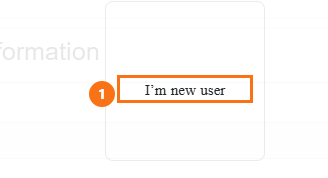
- Choose I'm new user (1).
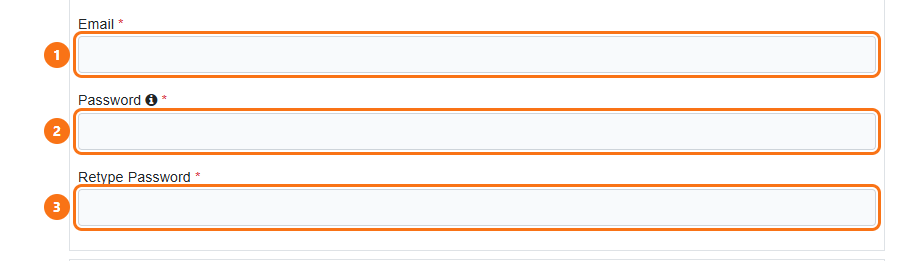
- Under Register, enter Email (1), Password (2) and Retype Password (3). The password rules are shown beside the password field.
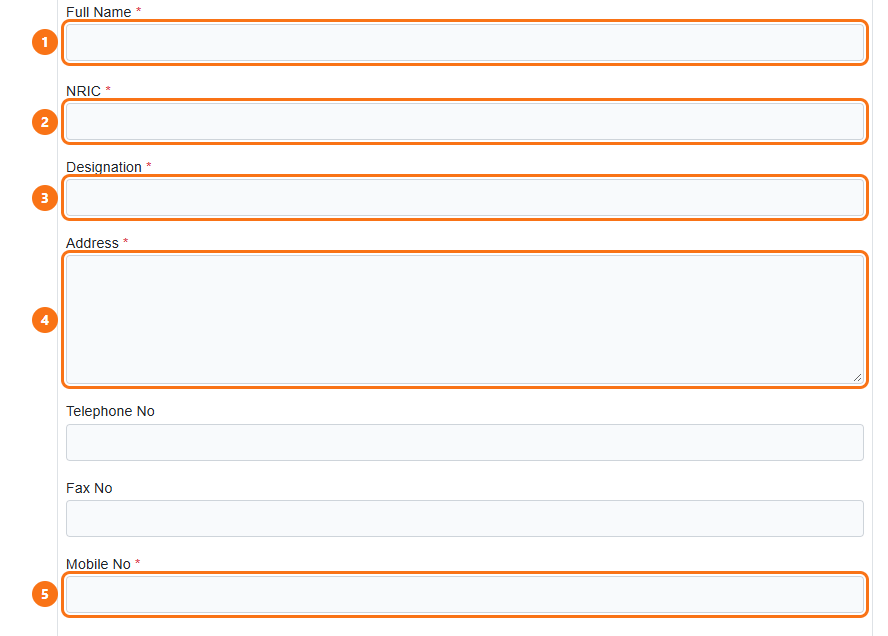
- Under Basic Information, enter Full Name (1), NRIC (2), Designation (3), Address (4) and Mobile No (5). Telephone No and Fax No are optional.
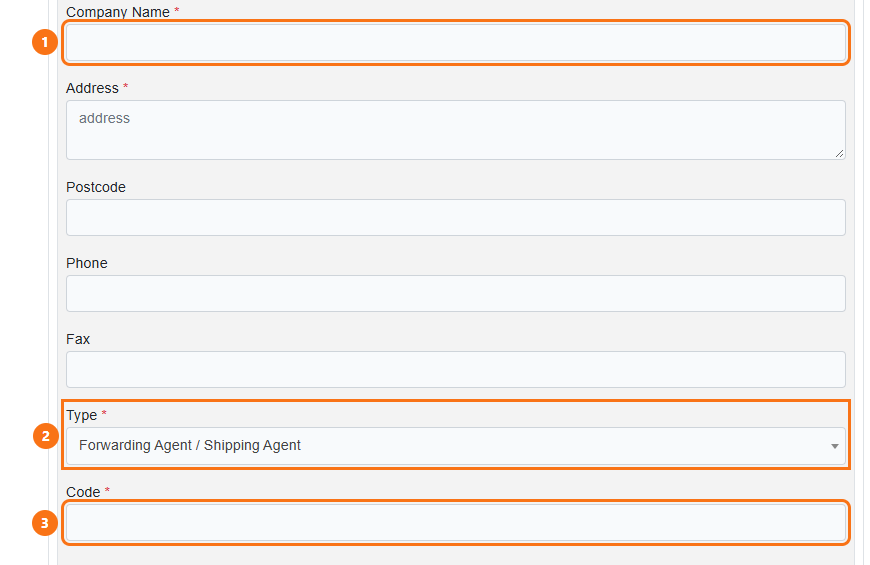
- Under Company Profile, leave the first Company Name as Create New Company Profile unless your company is already in the list. Then enter Company Name (1), choose Type Forwarding Agent / Shipping Agent (2), and enter Code (3).
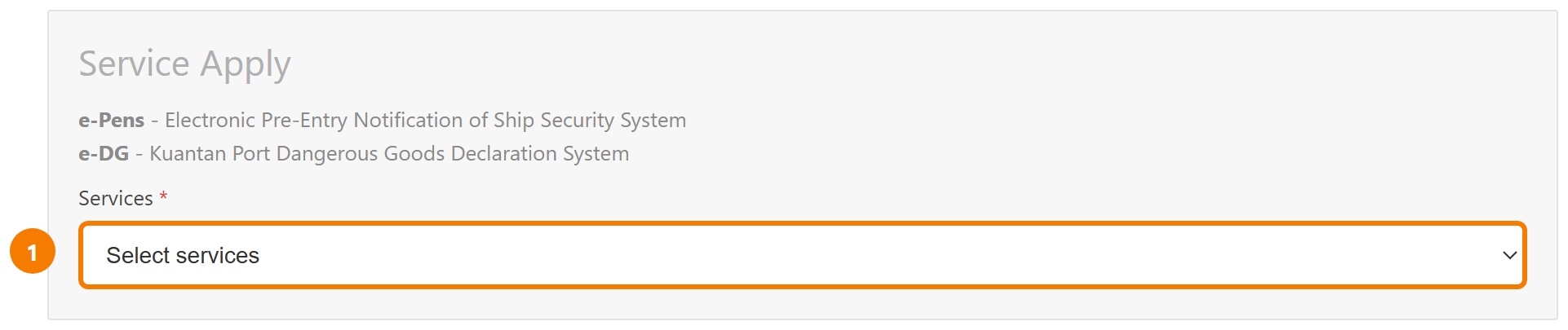
- Under Service Apply, open Services (1) and select e-Pens and e-DG.
- Click Submit (1).
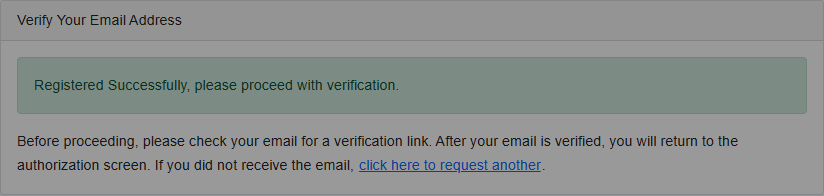
- PDCS shows Verify Your Email Address. Open the email and click Verify Email Address.
- When PDCS asks whether e-ZB may use the account, click Allow Access (1).
Step 3: Your e-ZB details
e-ZB opens the registration form. The heading says you are signed in with PDCS.
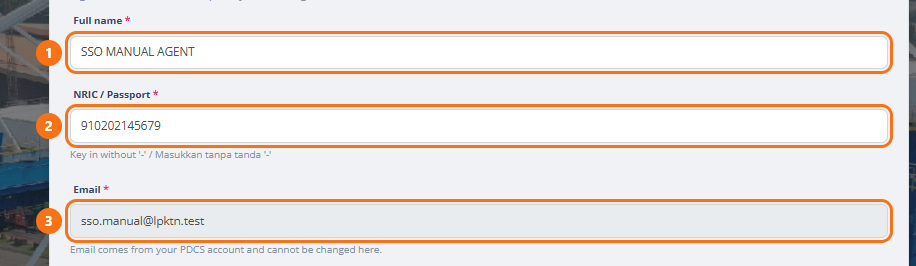
- Check Full name (1) and NRIC / Passport (2). Enter the NRIC without dashes. Email (3) comes from PDCS and cannot be changed here. Fill in Position on the same form.
- Check Mobile (1). Click Request OTP (2). A one-time code is sent by WhatsApp. Type it into the pop-up. Mobile verified appears when it is accepted.

- Choose the Owner (1):
| Choose | When |
|---|---|
| Create new owner profile | Your company is not in e-ZB yet. The name from PDCS is shown beside this choice. You will enter the rest of the agency profile in the next step. |
| Your existing agency | Your agency already uses e-ZB and you are joining it as another user. |
| Existing agency + Replace existing user (optional) | You are taking over from a staff member who has left. Choose the person being replaced. Their account is closed when your application is approved. No fee is charged. |

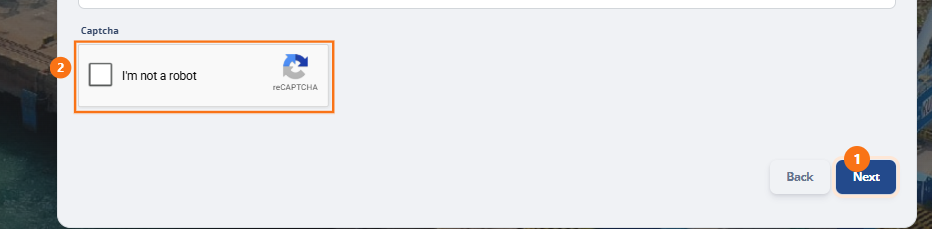
- Tick I'm not a robot (2) and click Next (1).
- Read the confirmation and click Agree / Setuju. Disagree / Tidak Setuju closes the window and leaves you on the form.
Note: Next stays closed until the mobile number is verified and the captcha is completed.
Step 4: Agency profile (new company only)
This step is skipped when you join an existing agency.
- The page title is Forwarding Agent Profile. It says you are signed in with PDCS. The company name and address may already be filled from PDCS.
- Enter the remaining fields, including MyCoID / Company Reg. No., SST / GST No., addresses and contact numbers. Agent Code is shown for a forwarding agent.
- Upload the documents (PDF). Business Profile / Company Profile is required.
- Click Next.
There is no e-ZB password page after this. Your password remains the PDCS password.
Step 5: Follow your application
- On the login page, click Check Registration Status.
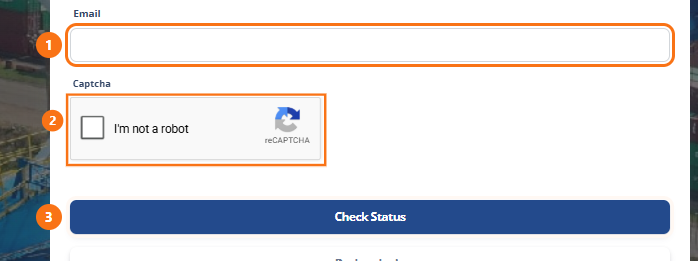
- Enter your Email (1), tick the captcha (2) and click Check Status (3).
| Status | Meaning | What you do |
|---|---|---|
| Pending Email Verification | The PDCS email link has not been opened | Open the PDCS email and click Verify Email Address |
| Pending Acceptance | LPKTN is checking your application | Wait. This is the usual status after you finish the e-ZB form |
| Return | LPKTN needs corrections (see Remark) | Click Update Profile & Resubmit, correct and submit |
| Awaiting Payment | Approved; the registration fee is due | Click Make Payment (Fiuu), or pay at the LPKTN counter if that choice is offered |
| Payment Over The Counter | You chose to pay at the counter | Pay at LPKTN; the officer records the receipt |
| Paid / Completed | Account is active | Sign in with Login via PDCS. "Registration is complete. You may sign in." |
| Rejected | Application not approved | Read the remark; contact LPKTN if needed |
| Registration Cancelled | You cancelled it | Register again if needed |
| System Terminated | No action for 30 days, closed automatically | Register again |
Tip: While the application is still being processed you can click Cancel Registration to withdraw it.
Step 6: Pay the registration fee
- When the status is Awaiting Payment, click Make Payment.
- You are taken to the Fiuu secure payment page. Choose your preferred method: Card, Online Banking (FPX), Online Banking (B2B) or QR / e-Wallet, and pay.
- After payment you return to e-ZB. Your account is activated. Sign in with Login via PDCS and the same PDCS account.
Note: A staff replacement registration has no fee.
If something goes wrong
| Problem | What to do |
|---|---|
| PDCS says the email is already registered | Sign in with that PDCS account. Do not create another one. |
| No verification email from PDCS | Check spam, or use click here to request another on the Verify Your Email Address page |
| No WhatsApp code | Check the mobile number, wait for the countdown and request the code again |
| Next does not open the confirmation | Verify the mobile number and tick I'm not a robot |
| "No registration found for this email address." | Use the same email you registered with |
| Payment failed | Check the status again and click Make Payment to retry |